
Relationships with web hosts often start with a cheap deal and a lot of hope. You expect your site to stay online, stay fast, and stay safe. Time passes, and the service begins to slip into a state of neglect. You notice the load times getting longer every single week. Support tickets sit for days without a real person giving a real answer. You feel like a number in a massive spreadsheet rather than a valued client.
Trust disappears when the promises made during the signup phase no longer match your daily reality. You deserve a platform that treats your digital assets with respect. The act of moving away feels like a massive chore, but the alternative is watching your hard work suffer.
You are about to learn how to spot the decay and find a better home for your files. A new host will restore your confidence and let you focus on your content instead of your server.
Breaking Points in the Service Relationship
You see the first signs of trouble when the server response time doubles overnight. The dashboard where you manage your files becomes a slow, clicking nightmare. Each page load in the WordPress admin area takes ten seconds or longer. Your visitors complain about the site being down during peak hours. The host claims everything is fine on their end while your site remains a ghost town.
Errors like the "Error Establishing a Database Connection" pop up without warning. You check your settings and find that nothing changed on your side. The server hardware is likely failing or overwhelmed by too many other users. Shared environments often suffer from neighbors who hog all the available memory. You lose money every second the site stays offline.
Renewal prices jump up by three hundred percent without any extra value. You look at the bill and realize you are paying for premium service but receiving basic leftovers. The company focuses on new customers while ignoring the loyalty of old ones. A lack of transparency regarding price hikes signals a predatory business model. You need to look for an exit before the next billing cycle hits.
Check the server logs for frequent 503 errors that indicate server overload. These logs show exactly when the machine gave up on your requests.
Monitor the time to first byte using external speed tests. A slow response here proves the hardware is the bottleneck.
Review the terms of service for any hidden clauses about price increases. Companies often hide these details in the fine print.
Ask the support team for a hardware refresh if your site stays on an old node. Old servers are prone to mechanical failures and slow processing.
Compare your current bill with the prices of competitors in the same tier. You will see if you are being overcharged for standard features.
Security Lapses and Silent Risks
The security of your WordPress site depends heavily on the underlying environment. You wake up to find your homepage replaced by a shady advertisement. Malware scans on your end show that the infection came from a server level vulnerability. The host refuses to help you clean the mess unless you pay a high fee. A secure host should block these attacks before they reach your folders.
Backups are your last line of defense during a total catastrophe. You try to restore a version from yesterday only to find the backup system is broken. The host never bothered to check if their automated scripts actually worked. You lose months of work because of their technical negligence. Reliable companies always verify the integrity of their data snapshots.
Firewalls and file permissions are often neglected on budget servers. You notice files appearing in your root directory that you never uploaded. The lack of isolation between accounts on a shared server is a recipe for disaster. One hacked neighbor is able to infect every site on that certain machine. You need a host that implements containerization to keep your data isolated.
Verify that your host has free malware scanning and removal services. Good hosts take responsibility for the health of their network.
Test the backup restoration process once a month to ensure it works. A backup is useless if the files are corrupted or missing.
Look for an SSL certificate that installs and renews automatically. Manual SSL management is a headache that you should avoid.
Investigate if the host uses a web application firewall to block brute force attacks. This layer of protection stops hackers before they hit your login page.
Ensure the host supports the latest version of PHP for better security. Older versions of PHP are full of holes that hackers love to exploit.
Support Deserts and Automated Script Responses
You send a ticket about a critical error that broke your checkout page. The reply arrives twelve hours later and contains a link to a generic FAQ. No one bothered to read your detailed explanation of the problem. You feel the frustration of talking to a wall while your revenue disappears. High quality support requires human eyes and actual technical knowledge.
Live chat queues grow longer as the company cuts costs on staffing. You wait in a line of fifty people just to speak to a Tier 1 agent. This person lacks the permissions to fix anything related to the server config. They simply tell you to wait for an email from a senior tech. The delay turns a small issue into a multi day outage.
Technical jargon is used to confuse you rather than help you. The agent blames your plugins even though you disabled them all for testing. You see through the excuses and realize they are just following a script. A true partner in web hosting helps you solve problems instead of deflecting blame. You are able to tell when a company stops caring about the user experience.
Note the average response time for your last five support tickets. Slow responses are a clear sign of an underfunded support department.
Ask a complex technical question before you sign up for a new plan. The depth of their answer tells you how much they know.
Prefer hosts that have 24/7 support via multiple communication channels. You need help at 3 AM if the site goes down suddenly.
Search for reviews that mention the quality of the technical staff. Real users will warn you about unhelpful or rude support teams.
Check if the support team is willing to look at server logs for you. Access to logs is necessary for finding the root cause of errors.

Hidden Surcharges and Invoicing Traps
The low price you saw on the homepage was a temporary teaser rate. You discover that the renewal price is quadrupled without any prior notice. The billing department makes it nearly impossible to cancel your subscription. You find extra charges for security features that should be included for free. Transparency in pricing is a hallmark of a trustworthy hosting provider.
Resource limits are often set very low to force you into an upgrade. You receive an email stating your site exceeded the allowed CPU usage. The host throttles your site speed to a crawl until you pay more. You check your traffic and see no spike that justifies this restriction. These artificial limits are a common way to squeeze more money from you.
Refund policies are filled with loopholes to keep your money. You try to cancel within the money back guarantee period only to be denied. They claim that the domain registration fee is non refundable and very expensive. You feel cheated by a company that prioritizes short term profit over reputation. Reliable hosts have clear and fair policies regarding your payments.
Calculate the total cost of ownership for a three year period. Looking at the long term price helps you avoid teaser rate traps.
Read the fine print regarding resource overage fees and penalties. You should know exactly what happens if your site gets a traffic boost.
Keep a record of all billing communications and cancellation requests. Evidence is helpful if you need to dispute a charge with your bank.
Compare the price of add ons like email hosting and backups. Some hosts charge extra for things that others give away for free.
Avoid hosts that require a long term contract for a decent price. Monthly plans give you the freedom to leave if the service decays.
Vetting New Hosting Infrastructure for WordPress
The search for a new host begins with a focus on hardware. You look for providers that use NVMe storage instead of old spinning disks. Fast storage means your database queries finish in a fraction of the time. The processor should have enough cores to handle multiple visitors at once. Modern infrastructure is the foundation of a successful and fast WordPress site.
Cloud based hosting offers better reliability than traditional dedicated servers. You are able to scale your resources up or down as your needs change. If one physical machine fails, your site moves to another one instantly. This level of redundancy prevents the dreaded downtime that kills your search rankings. You want a host that utilizes global networks like Google Cloud or AWS.
Software optimization is just as key as the physical hardware. You need a server that uses LiteSpeed or Nginx for maximum performance. These web servers handle WordPress much better than the old Apache setup. Built in caching layers should be available at the server level. The right combination of software and hardware makes your site fly.
Verify that the host uses the latest version of MariaDB or MySQL. Modern databases process your site information much more efficiently than old ones.
Ask about the availability of a Content Delivery Network (CDN). A CDN stores your images on servers all over the world for speed.
Check the RAM limits for your particular hosting plan level. WordPress needs a decent amount of memory to run many plugins smoothly.
Look for data centers located near your primary visitor base. Physical distance still matters when it comes to the speed of data.
Confirm that the host gives you a staging environment for testing changes. A staging site lets you break things without affecting your live visitors.
Managing Your Database for a Smooth Shift
The database is the brain of your WordPress website and holds all content. You must export this data with care to avoid any corruption issues. Programs like phpMyAdmin or WP-CLI are great for creating a clean export file. The size of the file could be an issue if your site is large. You need to ensure the new host handles large database imports without crashing.

Prefixes in the database tables should remain consistent during the move. You look at the wp-config.php file to find your current table prefix. The new installation must match this setting to read your data correctly. Errors in the prefix will result in a site that looks completely blank. Precision during this step is what keeps your posts and pages safe.
Database optimization is a smart move before you start the migration. You delete old post revisions and spam comments to shrink the file size. A smaller database moves faster and has fewer chances of timing out. You are able to use plugins to clean up the overhead in your tables. Clean data is much easier to manage in a new environment.
Create a full backup of the SQL file before you touch anything. This file is the only thing standing between you and total data loss.
Use a search and replace tool if your site URL changes. Links inside the database must point to the correct new address to work.
Check the collation settings of the new database versus the old one. Mismatched collation causes weird characters to appear in your text.
Increase the PHP memory limit before you attempt a large import. Importing a big file requires the server to work harder for a moment.
Verify that all tables were successfully copied to the new server. Missing tables will break particular functions or plugins on your site.
Secure File Transfers and Path Updates
The files of your site include the core code, themes, and plugins. You use SFTP to download everything from the old server to your computer. This method is much more secure than the old FTP protocol which sends passwords in clear text. The transfer process could take a while if you have many high resolution images. You must ensure that every single folder is included in the download.
Media uploads are usually the largest part of any WordPress installation. You find these files in the wp-content/uploads directory of your site. The file structure must remain identical on the new server for links to stay active. Broken images are a common result of a sloppy file transfer process. You need to check the folder permissions once the upload is complete.
Configuration files require manual updates to work on the new hardware. You open the wp-config.php file to enter the new database credentials. The host name, username, and password will all be different on the new platform. A single typo in this file will prevent your site from loading. Careful editing of these lines is the final step in the file move.
Compress your files into a single ZIP archive for faster downloading. Moving one large file is much quicker than moving thousands of small ones.
Use a reliable SFTP client like FileZilla or Cyberduck for the transfer. These programs help you resume the upload if the connection drops.
Keep a local copy of your files as an extra safety measure. You should never rely solely on the server for your only copy.
Update the file paths in your settings if the server structure changed. Some hosts use different home directory names that you must account for.
Set the correct folder permissions to 755 and file permissions to 644. Proper permissions prevent hackers from writing malicious code to your files.

Updating DNS Without Losing Visitors
The Domain Name System acts like a phone book for the entire internet. You need to point your domain to the IP address of the new server. This change takes some time to spread across all global networks. You could see the old site while your neighbor sees the new one. This period of transition is known as propagation and requires a bit of patience.
TTL settings determine how long servers cache your DNS information. You should lower the TTL value a few days before you plan to move. A lower value tells the internet to check for updates more frequently. This strategy reduces the time your visitors spend seeing an old version. You are able to raise the TTL back up once the move is finished.
Email records are often tied to your DNS settings and need attention. You must migrate your MX records if you use the host for your email. Losing emails during a migration is a major headache for any business owner. You could also use a third party email service to keep this separate. Keeping email and web hosting apart is often a very wise choice.
Check the status of propagation using an online DNS checker tool. You will see which parts of the world are still seeing the old IP.
Update the A record to point directly to the new server address. This is the primary record that tells browsers where to find your site.
Verify that your CNAME records are correctly configured for the www prefix. Both the root and the subdomains need to point to the right place.
Keep the old hosting account active for a few days after the switch. This ensures that anyone hitting the old IP still sees a working site.
Clear your local browser cache and DNS cache to see the changes. Your own computer might be clinging to the old server information.
Testing Environments and Sandbox Verifications
The site might look perfect on the surface but have hidden errors. You should use a temporary URL or a host file hack to see the new site. This allows you to browse the pages before you officially switch the DNS. You are able to catch layout issues or broken links in a safe environment. Testing is the only way to guarantee a smooth transition for your real users.
Forms and checkout processes are the most critical parts to test thoroughly. You should send a test email through your contact form to check connectivity. A broken form means lost leads and frustrated potential customers for your brand. You must also run a test transaction if you sell products or services. Reliability in these functions is why you are moving in the first place.
Plugin conflicts often arise when you move to a different server environment. You might find that a caching plugin behaves differently on the new host. Some features could require certain PHP extensions that are not yet enabled. You should check the site health page in the WordPress admin area. This page highlights any technical shortcomings that you need to address.
Browse through at least ten different pages to check for layout shifts. Different server configurations can sometimes affect how CSS files are served.
Log in to the admin dashboard and save a post to test database writes. You need to know that your site can still create new content.
Check the speed of the site using the new server IP address. You should see a noticeable improvement if the new host is actually better.
Verify that all internal links are working and not pointing to the old server. Search and replace errors can sometimes leave behind broken paths.
Test the site on a mobile device to ensure responsiveness is intact. Mobile users make up the majority of web traffic and deserve a fast experience.

Testing Environments
Secure Sockets Layer and Certificate Handshakes
A green padlock in the browser bar is a requirement for modern websites. You need a valid SSL certificate to protect the data sent by your users. Most modern hosts provide free certificates through services like Let's Encrypt. The installation process should be a simple click in your new control panel. You must ensure that the certificate covers both the root and subdomains.
Mixed content warnings occur when some assets still load over an unsecure link. You see a broken padlock or a warning message in the browser console. This usually happens when images or scripts have hardcoded HTTP addresses in the database. You are able to fix this by forcing all traffic to use the HTTPS protocol. A secure site builds trust with your visitors and improves your search ranking.
Certificate renewal should happen automatically without any input from your side. You should avoid hosts that require manual renewal of these security files every few months. A forgotten renewal will result in a scary warning for every person who visits. Modern hosting platforms handle this task silently in the background of the server. Security should be a seamless part of your web hosting experience.
Enable the "Always Use HTTPS" setting in your hosting dashboard. This ensures that no one accidentally accesses the unsecure version of your site.
Run an SSL lab test to check the strength of your encryption. A high score means your server is following the best security practices.
Check for any expired certificates that might be lingering on the server. Old certificates can sometimes interfere with the installation of new ones.
Ensure that your site is added to the HSTS preload list for extra safety. This tells browsers to only ever connect to your site via a secure link.
Verify that your CDN also uses a valid SSL certificate for its assets. Secure images are just as necessary as a secure main page.
Speed Optimization After Arrival
The new server gives a fresh start for your site performance metrics. You should implement a robust caching strategy that matches the new hardware. Server level caching is much more efficient than using a heavy WordPress plugin. You see a massive drop in server response time when caching is active. Fast load times keep people on your site and help you convert more visitors.
Image optimization reduces the weight of your pages without losing visual quality. You should use modern formats like WebP to keep file sizes as small as possible. The new host will perhaps have built in tools to handle this task automatically. A lighter site loads faster on slow mobile connections in remote areas. Performance is a constant process of refinement and small technical tweaks.
Script execution order can be adjusted to make the page feel faster to users. You should defer non critical JavaScript so the main content appears first. This improves the Largest Contentful Paint metric which is a key part of SEO. The host might have certain settings to optimize how files are delivered to the browser. You are able to achieve incredible speeds with a well configured server.
Use a tool like GTmetrix to identify the slowest elements on your page. Knowing what to fix is half the battle in the quest for speed.
Minify your CSS and JavaScript files to remove unnecessary characters. Smaller files travel across the internet much faster than bulky ones.
Enable Gzip or Brotli compression on your new hosting account. These technologies shrink your files before they are sent to the visitor.
Limit the number of external fonts you load on each page. Every extra font file adds another request that slows down the loading process.
Clean up your plugin list and delete anything you no longer use. Fewer plugins mean less code for the server to process on every visit.
Long Term Security Hardening
Moving to a better host is just the beginning of your security efforts. You should change all passwords for your database, SFTP, and admin accounts. Hackers often wait for a transition period to try and regain access to a site. Using a password manager helps you create and store complex strings of characters. Your login page should also be protected from multiple failed attempts.
Two factor authentication adds a second layer of defense to your WordPress login. You receive a code on your phone that is required to enter the dashboard. This prevents anyone from getting in even if they manage to steal your password. Many security plugins offer this feature for free to all WordPress users. You should treat your admin access with the highest level of care.
Regular updates for themes and plugins are the best way to stay safe long term. You should check for new versions at least once every single week. Developers release patches to fix vulnerabilities that hackers are currently using. A host that has managed updates can take this chore off your plate entirely. Staying current is the simplest way to avoid a devastating security breach.
Disable the file editor inside the WordPress dashboard for extra safety. This prevents anyone with admin access from changing your core theme files.
Rename the default admin username to something less predictable. Hackers always try the "admin" username first when attacking a site.
Monitor your site for any unauthorized file changes using a scanner. Knowing exactly when a file was modified helps you spot an intrusion.
Hide the WordPress version number from the source code of your site. This makes it harder for hackers to find version particular exploits to use.
Limit the number of people who have administrative access to the site. Giving out fewer keys reduces the chance of a security leak.
Monitoring Uptime with External Tools

Monitoring Uptime
The new host will claim 99.9 percent uptime on their sales page. You should verify this claim using a third party monitoring service. These services check your site every minute from various locations around the world. You receive an alert the moment the server becomes unresponsive for any reason. Data from an independent source is much more reliable than the host's status page.
Historical data helps you identify patterns in server performance over time. You could notice that the site slows down every Tuesday at midnight. This could indicate a poorly timed backup or server maintenance schedule. You are able to share this data with the host to demand a better solution. Constant monitoring keeps the hosting company honest about their service level.
Public status pages allow you to show your users that you are aware of issues. You can link your monitoring service to a page that displays your current uptime. This transparency builds credibility with your clients and reduces support requests during an outage. Most people are understanding if you are open about a technical problem. You should always be the first to know when your site goes dark.
Set up a free account with a service like UptimeRobot or Better Stack. These services provide basic monitoring that is perfect for most small sites.
Configure email and push notifications for immediate downtime alerts. Speed of response is key to minimizing the impact of a server crash.
Check the global response times to see how the site performs in different countries. A site that is fast in London might be slow in Sydney.
Analyze the "time to first byte" logs to see if the server is struggling. Slow server response is often a precursor to a total crash.
Keep a log of all downtime incidents to use during renewal negotiations. You are able to ask for a discount if the uptime guarantee was not met.
Scalability and Future Proofing Your Presence
The needs of your website will grow as you attract more visitors and content. You should choose a host that allows for easy upgrades with a single click. Moving to a larger plan should not require another full site migration. You want a platform that grows alongside your business without any friction. Planning for success today prevents technical headaches in the years to come.
Object caching becomes a requirement once your site reaches a certain size. You should look for hosts that support Redis or Memcached for database optimization. These caching solutions store frequent database queries in the server memory for instant access. This drastically reduces the load on the processor during high traffic events. Scalability is about more than just adding more RAM or CPU power.
Headless WordPress and static site generation are the next frontiers of web tech. You could eventually want to use WordPress as a backend for a separate front end. Ensure your host has a robust API and support for modern developer solutions. This flexibility allows you to pivot your strategy without changing your entire hosting setup. You are able to stay ahead of the curve with a forward thinking provider.
Inquire about the process for moving from shared to VPS hosting. Knowing the path upward helps you plan your long term budget.
Check if the host supports auto scaling during sudden traffic spikes. Auto scaling prevents your site from crashing during a viral moment.
Look for a provider that has staging environments at every plan level. Testing becomes even more vital as your site grows in complexity.
Verify that the host has a clear roadmap for hardware upgrades. You want to be on a platform that invests in the latest technology.
Assess the developer software available like Git integration and SSH access. These features make managing a large site much more efficient for you.
Content Delivery Networks and Global Reach
A site that loads fast in your home town could be slow across the ocean. You need a content delivery network to bridge the gap for distant visitors. This system caches your heavy images on servers located in hundreds of different cities. Your visitors receive data from the machine that is physically closest to their own location. Latency drops greatly when the data has a shorter distance to travel.
Security features are often built directly into the delivery network at no extra cost. You get protection against large scale attacks that try to overwhelm your server. The network acts as a shield that filters out malicious traffic before it reaches your host. You are able to sleep better knowing your site has a global security perimeter. Reliability increases when your traffic is distributed across a massive network of machines.
Image optimization on the fly is a common feature of premium delivery services. You serve the correct image size for every device without creating multiple files manually. This saves storage space on your hosting account and speeds up the mobile experience. Browsers receive modern file formats that load much faster than traditional ones. You should look for a host that integrates these services with a single toggle.
Check if the host includes a free CDN with your monthly subscription. Many top tier WordPress hosts now include this as a standard feature.
Enable the "Polish" or "Mirage" features if you use a service like Cloudflare. These settings automatically optimize your images for the best possible performance.
Verify that your CSS and JavaScript files are also being served via the CDN. Moving all static assets to the network provides the biggest speed boost.
Purge the CDN cache whenever you make a major update to your site design. This ensures that visitors see the newest version of your files immediately.
Monitor the bandwidth savings reported by your delivery network dashboard. You will see how much load is being taken off your main server.
How I "Finally" Make Over $7,000 Monthly Income
"The most valuable thing I've ever done!"
Email Migration and Mail Record Integrity
Email is the lifeline of your professional communication and requires careful handling. You often have years of messages stored on your old hosting server. Moving these files to a new provider is a delicate and slow process. You should use a program like IMAPSync to transfer the data between accounts. A single missing email could mean a lost opportunity for your business.
SPF and DKIM records are necessary for your emails to reach the inbox. You find these records in your DNS zone editor at the new host. Incorrect settings will cause your messages to be flagged as spam by recipients. You are able to verify these records using various online validator tools. Reliable email delivery is just as weighty as a fast loading website.
The transition period for email requires you to check both the old and new accounts. You should keep the old mailbox active for a week to catch any stray messages. Propagation of DNS changes affects email delivery just like it affects web traffic. Some servers will send to the new address while others still see the old one. You need a clear plan to ensure no message goes unread during the shift.
Backup all your email folders to a local computer using an email client. This gives you a permanent record of your messages outside of the server.
Update your MX records to point to the new mail server IP address. These records tell the world where to deliver messages sent to your domain.
Configure your email client with the new server settings as soon as possible. You will need the new hostname and ports to send and receive mail.
Test your outgoing mail to ensure it is not being blocked by a firewall. Some hosts block port 25 to prevent spam, which requires you to use a different port.
Set up an auto responder on the old account if you have the ability. A simple message tells senders that you are currently moving your servers.
Resource Monitoring and CPU Usage
The health of your server is directly related to how it handles the load. You should monitor the CPU usage during times of high visitor activity on your site. A server that runs at ninety percent capacity all day will eventually crash. You are able to see these metrics in the control panel of your hosting account. High usage indicates that you need more power or better code optimization.
Memory leaks in plugins can drain all the available RAM in minutes. You notice that the site becomes slow and then suddenly displays a white screen. The server logs will show "out of memory" errors when this happens to you. You need to identify the culprit plugin and replace it with a more efficient one. Efficient resource management is the key to a stable and reliable website.
Disk I/O measures how fast data is being read from and written to the drive. You want a host that offers high limits for these input and output operations. Slow disk speed will throttle your database and make the entire site feel sluggish. Modern NVMe drives offer the best performance for heavy WordPress installations today. You should always choose a host that prioritizes fast hardware for every client.
Review the resource usage reports in your dashboard once every single week. Spotting a trend early allows you to fix problems before the site goes down.
Enable alerts for when your site hits eighty percent of its resource limits. You will have enough time to investigate the cause before a crash occurs.
Check the number of entry processes that your hosting plan allows for you. This limit determines how many people can access the site at the exact same moment.
Optimize your database queries to reduce the load on the server processor. Efficient code uses fewer resources and makes the site much faster for everyone.
Use a lightweight theme to minimize the amount of work the server does. Themes with too many built in features often waste CPU cycles for no reason.
Cache Management and Performance Layers
Caching is the process of storing a static version of your dynamic pages. You should use a multi layered strategy to get the best results for your site. The first layer is the server cache which serves pages without hitting the database. You see an immediate reduction in load times when this layer is active. A well cached site handles thousands of visitors without breaking a sweat.

Is Cybercache Happening Worldwide?
Object caching stores the results of complex database queries for future use. You should enable Redis if your host has it as an available service. This is particularly helpful for sites with many logged in users or WooCommerce stores. You notice that the WordPress admin area becomes much more responsive with object caching. Speed in the backend is just as weighty as speed for your visitors.
Browser caching tells the visitor's computer to store certain files locally for a while. You set an expiration date for images, CSS, and JavaScript files in your config. This means the browser does not have to download the same files on every page view. You are able to save a lot of bandwidth for both yourself and your users. Effective cache management is a cornerstone of professional web performance today.
Configure your caching solution to exclude the checkout and cart pages. Caching these pages will cause errors for people trying to buy your products.
Verify that your cache is actually working by checking the HTTP headers. You should see a "HIT" status in the response headers of your site.
Set a longer expiration time for static assets like logos and icons. These files rarely change and should be kept in the browser cache for months.
Clear the server cache only when you make a major change to the site content. Frequent clearing of the cache forces the server to work much harder than necessary.
Test your site speed with the cache disabled to see the baseline performance. Knowing the raw speed of your server helps you identify potential hardware issues.
Backup Redundancy and Offsite Storage
A single backup on the same server as your site is not enough for safety. You should always have a secondary copy of your data in a different location. If the data center burns down, your local backup will save your entire business. You are able to use services like Amazon S3 or Google Drive for storage. Redundancy is the only way to ensure your site is truly indestructible.
Automated backups should run every day at a time when traffic is at its lowest. You should check the size of these backups to ensure they are complete files. A backup that is only a few kilobytes is likely a sign of a failed script. You need to keep at least thirty days of history to recover from older issues. Peace of mind comes from knowing you have the power to roll back time if needed.
Restoration testing is a task that most people forget until it is far too late. You should try to restore your site to a local staging area once a month. This process confirms that your backup files are not corrupted and actually work. You will learn the exact steps to take during a real emergency situation. A proven restoration plan is more valuable than the backup itself.
Schedule your database backups to run more frequently than your file backups. The database changes every time you get a comment or a new order.
Encrypt your backup files to protect sensitive user data from being stolen. Security should follow your data even when it is sitting in storage.
Keep a manual backup before you update any core WordPress files or plugins. This is your safety net if an update breaks your entire website.
Verify that your media folder is included in the automated backup schedule. Some plugins skip the uploads folder to save space, which is a major mistake.
Use a dedicated backup program that sends files to multiple remote locations. Having copies in two different cloud providers is the ultimate level of safety.
Final Audits and the Joy of a Fast Site
The migration is complete when the DNS has finished its global update. You should perform a final sweep of the site to ensure everything works. Check your broken link reports to find any files that didn't move correctly. You are able to use automated programs to crawl your site for errors. Success is found in the details that most people overlook during a move.
Your page speed scores should show a massive improvement over the old host. You feel a sense of pride when the site loads in under a second. Visitors stay longer and view more pages when they don't have to wait. This positive user behavior tells search engines that your site is high quality. A fast site is the best foundation for any digital marketing strategy.
Support interactions should feel helpful and personal from this point forward. You notice that the agents actually know how to manage a WordPress environment. Issues are resolved in minutes rather than days of back and forth emails. The peace of mind that comes with a reliable partner is truly priceless. You have successfully found a solution to a difficult situation and come out much stronger.
Run a final security scan to ensure the new environment is clean. A fresh scan confirms that no malware was brought over during the move.
Check the site in various browsers to ensure visual consistency for everyone. Chrome, Firefox, and Safari sometimes render pages with slight differences.
Test your site speed from multiple global locations one last time. Consistent speed across the globe is the mark of a great hosting setup.
Close your old hosting account to avoid any future billing surprises. Make sure you have all your data before you hit the delete button.
Document your new server settings for future reference or for your team. Having a record of your configuration saves time during future updates.
Immediate Actions for Your First Day on a New Host

Your arrival at a fresh hosting environment marks a clean slate for your online presence. You finally left the baggage of the old provider behind. A sense of relief washes over you as the dashboard loads with newfound speed. Now the real work begins to ensure every setting is hardened and optimized for your traffic patterns. You need a rigorous protocol to verify that the migration left no silent errors in its wake.
A list of tasks serves as your roadmap during the first twenty-four hours of operation. Errors caught early prevent major outages during the coming weeks of growth. You are the master of this new server space. Every click today builds the foundation for a much more stable future. You will find that a methodical check of the environment reveals small tweaks that yield massive results. Let us walk through the immediate steps to secure your win. You deserve a site that functions without a single hiccup from the very start.
Verifying the Server Environment
The server hardware requires a quick audit to confirm you received the resources you purchased. You check the available disk space to ensure the migration did not fill the entire drive. A crowded disk prevents the database from writing new log files or session data. You look at the allocated RAM to verify it matches your plan specifications. Correct resource allocation is the bedrock of a stable WordPress site.
The PHP version on the new machine should be the most recent stable release. You check the settings to see if the server defaults to an outdated version. Older versions slow down your site and leave it open to known exploits. You update the memory limit to at least five hundred twelve megabytes for better performance. Small adjustments in the configuration file prevent the white screen of death.
Directory structures often differ between various hosting providers and platforms. You verify that the absolute paths in your configuration files are accurate for the new system. Broken paths result in failed file uploads or missing plugin functionality. You test the file permissions to ensure the web server has the right level of access. Secure permissions keep your sensitive files away from prying eyes.
Check the CPU core count in the control panel to ensure it meets your needs. A higher core count allows the server to process more simultaneous requests from visitors.
Verify the disk read and write speeds using a command line test. Fast storage is a requirement for a database heavy application like WordPress.
Compare the PHP configuration limits with the requirements of your themes. You need enough execution time for complex scripts to finish without timing out.
Ensure the server time zone matches your local time for accurate logging. Synced clocks help you correlate server events with your own site activities.
Look for any pre-installed plugins that the host added. You should remove any unwanted items that slow down your administration dashboard.
Database Integrity and Connection Testing
The database connection is the most common point of failure after a move. You open your configuration file to double check the host and database name. A single typo in the password will keep the entire site offline. You ensure the new database user has full privileges to modify tables. Testing the connection now saves you from mysterious errors later in the day.
Table prefixes must match the ones used in your old environment exactly. You look at the SQL tables using a management interface like phpMyAdmin. If the prefixes are different, the site will act as if it is a new installation. You rename the tables or update the configuration file to resolve this mismatch. Consistency in your data structure is what keeps your content visible.
Queries should run fast and without errors on the new hardware. You use a plugin to monitor the speed of your database calls. Slow queries indicate that the new server needs better indexing or more memory. You clean up the overhead in your tables to keep the database lean. A fast database is the engine that drives a quick WordPress experience.
Run a repair and optimize command on all database tables. This process clears out old temporary data and reorganizes the indexes for speed.
Verify the character set and collation of the new database. Mismatched encoding results in strange symbols replacing your punctuation and special characters.
Check for any large log tables that grew during the migration process. Deleting these logs frees up space and reduces the size of your future backups.
Test the database search and replace functionality for any old URLs. You need to ensure every internal link points to the new server address.
Confirm the database user password is long and uses complex characters. Security starts with a strong barrier between the web and your raw data.
Security Hardening and Access Control
Passwords from your old host are potentially compromised and need a refresh. You change the login credentials for every user with administrative access. This prevents anyone from the old hosting company or hackers from getting in. You also update the secret keys in your WordPress configuration file. Fresh keys invalidate all existing cookies and force everyone to log in again.
Firewall settings on the new server require your immediate attention and review. You ensure that only the necessary ports are open to the public web. Blocking access to the file transfer ports from unknown IP addresses is a smart move. You look for a setting that limits the number of login attempts. A tight firewall is your first line of defense against brute force attacks.
Malware scanning should be active from the moment you go live. You run a full scan of all your files to ensure the transfer was clean. Sometimes a migration script brings over old infected files from the previous host. You set up a schedule for automated scans to run every single night. Vigilance is the price of a secure and reputable website.
Enable two factor authentication for every single administrator account. This extra step makes it almost impossible for hackers to steal your access.
Verify that the file editor is disabled in the WordPress dashboard. Removing this feature prevents anyone from changing your code through the browser.
Check the server logs for any suspicious login activity. You will see if anyone is trying to guess your passwords right away.
Update your security plugin to match the new server environment. Some settings need adjustment to work correctly with the new host firewall.
Ensure that your site does not broadcast its WordPress version number. Hiding this information makes it harder for bots to find version-based vulnerabilities.
Media Library and File Path Verification
Images are the most likely items to break during a site migration. You browse through your media library to check for missing thumbnails or icons. If images are not loading, the file paths are likely pointing to a dead directory. You use a search and replace script to fix these paths in your database. Seeing a full gallery of images confirms that the transfer was a success.
Permalinks often need a quick refresh to work on a new web server. You go to the settings page and click save without changing any options. This action regenerates the rules that tell the server how to find your pages. Without this step, you will see 404 errors on every page except the homepage. A quick refresh is a simple fix for a very common migration problem.
Upload limits on the new host could be lower than your old settings. You try to upload a large image to test the current server restrictions. If the upload fails, you need to increase the maximum file size in the PHP settings. You also check the maximum execution time to prevent timeouts during large uploads. Being able to add new content is a basic requirement for your site.
Check the uploads folder permissions to ensure they are set to 755. Incorrect permissions will prevent you from adding any new images or files.
Verify that the Year and Month folders are being created correctly. WordPress uses these folders to organize your media files by date.
Look for any broken image links using an automated crawling tool. Finding these errors now prevents a poor experience for your site visitors.
Confirm that your image optimization plugin is active and working. Smaller image files keep your site fast and save you money on storage.
Test the generation of different thumbnail sizes for your theme. You need to know that the server has the necessary image processing libraries installed.
Performance Optimization and Caching Setup
Caching settings from your old host will likely not work on the new one. You clear all existing caches to let the new server build its own files. You enable server level caching if the new host has that feature available. This layer of speed is much more powerful than any WordPress plugin you find. Fast page loads are the first thing your regular visitors will notice.
Minification of CSS and JavaScript reduces the weight of every page load. You check if the new host provides a built in tool for this task. Combining small files into one larger file reduces the number of server requests. You test the site after enabling minification to ensure the design remains intact. Lighter pages load much faster on mobile devices and slow connections.
Gzip compression should be active on the server to shrink your file sizes. You use an online tool to verify that your site is sending compressed data. This technology can reduce the size of your text files by up to seventy percent. Most modern hosts enable this by default, but you should always check yourself. Every byte saved helps your site load more quickly for your users.
Enable the object cache to speed up your database heavy pages. Redis or Memcached are excellent choices for keeping your site responsive.
Configure your browser caching headers to keep static files local. Long expiration dates for images and scripts reduce the load on your server.
Test the site speed from at least three different global locations. Consistent speed proves that the new host has a solid network infrastructure.
Review the number of active plugins and remove any that are redundant. Fewer plugins mean less code for the server to process on every visit.
Check if the host has an integrated content delivery network. A delivery network puts your images closer to your visitors for much faster loading.
Email Deliverability and SMTP Configuration
Sending emails directly from the server is often a recipe for the spam folder. You should configure an SMTP plugin to handle your site's outgoing messages. This ensures that contact form entries and order receipts actually reach your customers. You use a dedicated email service for better reliability and tracking. Professional email delivery is a requirement for any serious online business.
SPF and DKIM records in your DNS must be updated for the new host. You look at the DNS settings to ensure your domain has permission to send mail. Without these records, Gmail and Outlook will likely block your messages entirely. You use a mail tester tool to check your deliverability score today. Clean email headers are the key to staying out of the junk folder.
Testing your contact forms is a task you cannot afford to skip. You send a test message to yourself and verify that it arrives promptly. Check the "from" address to ensure it matches your official domain name. You also check the reply-to headers to make sure you can answer your customers. A working contact form is the bridge between you and your visitors.
Verify that your server IP address is not on any global blacklists. A blacklisted IP will prevent your emails from reaching anyone at all.
Check the email logs to see if any messages are bouncing back. Bounces indicate a configuration error that you need to fix immediately.
Configure a fallback email address for any failed system notifications. You need to know if the server is trying to tell you something important.
Set up a professional email signature for all your outgoing site mail. A clean signature builds trust and provides your contact info to the reader.
Ensure that your email service has a high daily sending limit. You don't want your site to stop sending mail during a busy sales day.
User Experience and Front End Audit
The visual layout of your site should be identical to the old version. You browse the site on your phone to check for any mobile display issues. Sometimes a new server environment affects how fonts or styles are rendered. You look for any overlapping text or images that seem out of place. A professional look is what keeps people on your site for longer.
Navigation menus and buttons require a thorough click through today. You ensure that every link leads to the correct page on the new server. Broken links are a major frustration for users and hurt your search rankings. You test the search bar to see if it returns accurate results from your database. Smooth navigation makes your site feel polished and easy to use.
Dynamic elements like sliders and popups often break during a migration. You verify that all your interactive features are functioning as they should. These scripts often rely on specific file paths that might have changed. You check the browser console for any JavaScript errors that need fixing. Functional interactive elements are what make your site modern and engaging.
Test the site on three different browsers to ensure total compatibility. Chrome, Safari, and Firefox all have different ways of reading your code.
Check the loading speed of your homepage on a 4G connection. Mobile users are often on slower networks and need a fast experience.
Verify that your favicon and site icons are appearing correctly. These small details are what make your brand look professional to visitors.
Ensure that your header and footer links are all active. These areas are often overlooked but are used frequently by your visitors.
Check the contrast and readability of your text on the new server. Subtle changes in rendering can sometimes make your content harder to read.
Plugin Compatibility and Script Testing
Plugins are the most common source of errors in a WordPress environment. You review your active list and check for any compatibility warnings. Some older plugins might struggle with the latest version of PHP on the new host. You update everything to the newest version to ensure the best performance. Stable plugins are the secret to a site that never crashes.
License keys for premium plugins often need to be reactivated after a move. You check the settings page for each paid plugin to ensure it is still active. Without a valid license, you will not receive the latest security updates. You enter your keys again if the plugin shows a "disconnected" status. Keeping your software updated is your best defense against future problems.
Background tasks like scheduled posts and backups rely on the WordPress cron system. You verify that these tasks are running on schedule on the new server. Sometimes the host blocks the default cron system for performance reasons. You might need to set up a real cron job in the server control panel. Reliability in background tasks keeps your site running while you sleep.
Deactivate any plugins that were specific to your old hosting provider. Keeping dead code on your server is a security risk and a waste of space.
Check the error logs for any plugin conflicts that are happening silently. Some errors don't break the site but slow down the server over time.
Verify that your page builder is working correctly and saving changes. You need to know that you can still edit your site layout easily.
Test any membership or e-commerce plugins for proper functionality. These complex systems are the most likely to have issues after a move.
Ensure your analytics plugin is still tracking visitors on the new host. You don't want to have a gap in your data during the first few days.
Backup Automation and Redundancy Verification
The backup system on your new host is your most important safety net. You set up a schedule that creates a full copy of your site every day. You ensure that these files are stored in a different location from your server. If the server fails, you need to be able to recover everything quickly. A site without a backup is a site waiting for a disaster.
Manual backups are a smart move before you make any big changes today. You create a snapshot of the site once you finish the initial configuration. This gives you a point to return to if your next tweak breaks something. You check the file size of the backup to ensure it contains all your data. Having a local copy of your site provides an extra layer of security.
Restoration is the only way to prove that your backups actually work. You try to restore a backup to a staging area to test the process. You need to know exactly how many minutes it takes to get the site back online. This knowledge is priceless during a real emergency situation later on. A backup is only useful if you are able to use it.
Verify that your database and files are both being backed up. Missing either one will make a full restoration of your site impossible.
Check the retention policy to see how many days of history you have. You should keep at least thirty days of backups for maximum safety.
Ensure the backup process does not slow down your site for visitors. Schedule your backups for the middle of the night to avoid any issues.
Look for a host that offers "one click" restoration for easy recovery. Saving time during a crisis is what makes a hosting provider great.
Test the integrity of your backup files by opening them on your computer. You should be able to see your images and database files inside.
SSL Certificate and Encryption Handshake
The green padlock in the browser bar is a requirement for user trust. You check the status of your SSL certificate to ensure it is active. Most hosts provide a free certificate that renews itself automatically every few months. You should verify that the certificate covers both the root and the subdomains. A secure connection is the baseline for any modern website today.
Redirects from HTTP to HTTPS should be forced at the server level. You test your site by typing the unsecure address into your browser. The server should immediately send you to the secure version of the page. This prevents any sensitive data from being sent over an unsecure connection. You are able to set this up in the hosting control panel easily.
Mixed content warnings will scare away your visitors and hurt your reputation. You look for any images or scripts that are still loading over HTTP. These errors often happen when links are hardcoded in your theme files. You use a plugin or a search and replace tool to fix these links. A perfectly secure site has no warnings in the browser console.
Check the expiration date of your current SSL certificate right now. You don't want to be surprised by an expired certificate in a few weeks.
Verify that your SSL certificate is using strong encryption protocols. Older protocols are less secure and might be blocked by modern browsers.
Enable HSTS to tell browsers to only ever use the secure version. This is an extra layer of security that protects your users from attacks.
Ensure that your SSL certificate is recognized by all major mobile devices. Some cheap certificates are not trusted by older phones or tablets.
Test your site with an SSL checker tool to find any hidden errors. These tools provide a detailed report on the health of your encryption.
Final Review and Growth Planning
The first day on a new host is about more than just surviving the move. You should take a moment to appreciate the improved speed and stability. Your site is now on a platform that can handle your future ambitions. You have a clean environment that is ready for new content and visitors. This successful move is a major milestone for your online business.
Performance monitoring will help you stay ahead of any future slowdowns. You set up a service to track your uptime and server response times. This data will tell you if the host is living up to its promises over time. You should check these reports once a week to look for any patterns. Consistency is the hallmark of a truly great hosting provider.
Documentation of your new settings is a gift to your future self. You write down the IP addresses, name servers, and support contact info. Keeping this information in a safe place saves you time during the next update. You also record the steps you took to optimize the server this week. Clear notes are the sign of a professional and organized webmaster.
Update your site's "About" or "Status" page with the new hosting info. Letting your users know about the upgrade builds trust in your brand.
Review your traffic goals for the next six months of your business. Your new host should have plenty of room for you to grow your numbers.
Say thank you to the migration team if they were helpful to you. Building a good relationship with your host's support team is very wise.
Check your search engine console to see how the move affected your site. You might see a boost in your rankings due to the faster load times.
Plan your next big content update now that the technical work is done. A fast and stable site is the best place to share your ideas.
Completing your first day on a new host is a massive achievement for any site owner. You took a potentially stressful situation and turned it into a win for your brand. The steps you followed today ensure that your site is fast, secure, and ready for the world. You have a solid foundation that will serve you well for years to come. Every minute you spent on this checklist was an investment in your future success. The peace of mind that comes from a reliable host is worth every bit of the effort. You can now focus on what you do best, which is creating content and connecting with people. Your site is no longer a source of frustration, but a high performance machine. Take a moment to celebrate this technical victory before you move on to your next project. You deserve the stability and speed that your new platform provides for your visitors.
Moving Your WordPress Site to a Reliable Platform Without the Stress
Finding a new home for your WordPress site is a bold step toward a better digital future. You no longer have to settle for slow speeds, poor support, or constant security fears. The process of migrating requires attention to detail, but the rewards are well worth the effort. You will see higher search rankings, happier visitors, and a much more peaceful mind.
Trust is something a hosting company earns through consistent performance and honest communication every day. You now have the knowledge to vet a provider and move your files like a professional. Take your time with the database and DNS settings to ensure a perfect transition for everyone. Your hard work deserves a platform that stays stable under pressure and treats you with fairness. The switch to a superior host is the best investment you are able to make for your online presence right now.
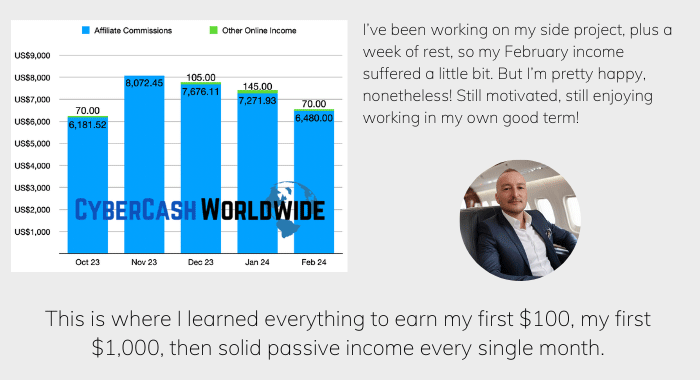
(Real Time) Affiliate Income Report Last Month

I was thinking that (word removed) is not real, But today with Mr Joseph Lucky, I now believe that (word removed) is real, when you come across wrong person’s you will think that life is not real but when you are with the real one you will experience the goodness of your life…
Thanks for your comment but no point copying & pasting the same old boring mantra – it’ll get back to you one day.
Thank ou so much for valuable information. I am so unhappy with my current web hosting company that I really want to make my site to another company. This post is very detailed. a little too much in detail and at times I got confused, but it definitely helped. Thank you for te great post. I am starting all over again with my affiliate marketing business. I will come back to Cybercash worldwide over and over again. Thank you. From David in Belgium
Thanks for your comment David, glad the post helped. If you have any question or problem, come back to us at any time. Good luck!