
Privacy online often feels like a myth in the modern era of constant surveillance. You probably realize that every click leaves a digital footprint for advertisers to follow. Companies track your behavior across different sites to build a profile of your personal life. Most people assume a simple incognito window protects their data from prying eyes. Reality tells a much different story regarding how your information flows through the internet. Privacy requires a much deeper level of technical knowledge than just clicking a private mode button.
Every site you visit collects data about your hardware and software setup. Data brokers buy and sell your habits to the highest bidder without your consent. Your internet service provider sees every request you make to a remote server. Securing your presence online involves several layers of protection working in unison.
You will find that true anonymity stays elusive without consistent effort and the right configurations. Let us explore the technical side of staying hidden while you surf. Your computer leaks data even when you think the connection is secure. You should worry about your browsing history when you go online. Total silence from your machine is the only way to ensure your secrets remain yours.

Digital Fingerprints and Tracking
Sites track you by collecting data about your hardware and software setup. Your screen resolution and time zone reveal a signature for advertisers. Servers use scripts to see which fonts you have installed on your system. Every browser sends a header that describes your operating system and version. Information like this creates a profile that remains even after you clear your cookies.
The collection of such data is known as browser fingerprinting in tech circles. You appear as a distinct user because your hardware combination is rarely identical to another person. Privacy settings in basic browsers fail to stop these scripts from running. You will notice that ads follow you across different devices despite your efforts. Advertisers rely on this method because it bypasses traditional cookie blocks.
Privacy enthusiasts use specialized browsers to spoof their hardware information. You should hide your real screen dimensions to avoid becoming a target. Browser settings often allow you to disable certain telemetry features. Users often forget that their graphics card leaves a distinct trace. You find safety by looking like everyone else on the network.
- Modify your browser user agent to mimic a more common operating system.
- Disable hardware acceleration to prevent your graphics card from being identified.
- Block scripts that attempt to read your system font list.
- Use a browser that resists fingerprinting by returning generic hardware values.
- Randomize your time zone settings to confuse tracking algorithms.
Domain Name System Leaks
Computers use the Domain Name System to turn website names into numerical addresses. Your internet service provider usually handles these requests by default. They see every website you try to visit before the page even loads. Logs of these requests are often stored for long periods or sold to third parties. Encrypting these requests is a mandatory step for anyone seeking true privacy.
Standard DNS requests travel across the web in plain text for everyone to see. Hackers and providers use this weakness to monitor your online activity. You should switch to an encrypted DNS provider to hide your queries. Secure protocols like DNS over HTTPS wrap your requests in a layer of security. The protocol prevents middle-men from seeing which sites you choose to access.
The configuration of your router often dictates how your devices handle DNS. You must ensure that every device on your network uses a secure resolver. Leak tests reveal if your real IP address is visible during a DNS lookup. Privacy depends on making sure your requests do not bypass your security tunnel. You find that many VPNs fail to secure these requests properly without manual tuning.
- Configure your router to use a privacy-focused DNS resolver instead of the default.
- Enable DNS over HTTPS in your browser settings to encrypt your lookups.
- Run a leak test to ensure your DNS requests stay inside your encrypted tunnel.
- Disable IPv6 if your network provider does not support secure IPv6 DNS.
- Use a local DNS proxy to manage and encrypt all outgoing requests from your machine.
Extension Management and Security

Extension Management
Browser extensions often have full access to the data you enter on websites. You should be cautious about which plugins you add to your browser. Malicious developers sometimes buy popular extensions to turn them into spyware. Every added plugin increases the surface area for potential security breaches. You must audit your list of active extensions on a regular basis.
Permission settings allow you to limit what an extension sees on your screen. You should only grant access to the sites that actually require the plugin. Open-source extensions are generally safer because the code is public for review. Developers frequently update their code to patch holes that trackers use. You find that fewer extensions usually result in a faster and safer experience.
Privacy-focused plugins block advertisements and tracking scripts by default. You should look for utilities that stop cross-site trackers from following your path. Some extensions create a container for each site to prevent data sharing. Users find that these instruments help maintain a clean digital environment. You should avoid extensions that require you to log in with a social media account.
- Remove any extensions that you have not used in the last month.
- Check the permissions of each plugin to ensure they do not read your passwords.
- Select extensions that have a large number of positive reviews and active developers.
- Install a script blocker to control which parts of a website are allowed to run.
- Use a container extension to separate your social media accounts from your other browsing.
Virtual Private Networks and Proxies
A Virtual Private Network creates a secure tunnel between your computer and a remote server. This encrypted connection hides your traffic from your internet service provider. You appear to have the IP address of the VPN server instead of your home address. Websites see the location of the server rather than your actual physical coordinates. You gain a layer of anonymity by mixing your traffic with other users on the same server.
The choice of a VPN provider requires careful research into their logging policies. You should select a service that operates in a jurisdiction with strong privacy laws. Free VPN services often sell your data to pay for their infrastructure costs. Paid services generally offer better security and faster connection speeds for your daily needs. You must verify that the service uses strong encryption protocols like WireGuard or OpenVPN.
Proxies work differently by only rerouting specific types of traffic through a middle server. You might use a SOCKS5 proxy for individual applications that need a different IP. Proxies do not always encrypt your data like a full VPN tunnel does. Most users prefer a system-wide VPN for comprehensive protection against leaks. You should always check for a kill switch feature to prevent accidental exposure.
- Verify that your VPN provider has a verified no-logs policy from a third-party audit.
- Enable the kill switch feature to block internet access if the VPN connection drops.
- Choose a server location that matches the region of the content you wish to access.
- Connect to a multi-hop VPN to route your traffic through two different servers.
- Avoid using free proxy lists found on public websites as they often contain malware.
Cookie Handling and Local Storage

Cookies are small files that websites store on your computer to remember your preferences. Advertisers use tracking cookies to follow you as you move between different domains. You should configure your browser to delete all cookies every time you close the window. Persistent cookies stay on your machine for years if you do not manually remove them. You will find that blocking all cookies makes some websites stop working correctly.
First-party cookies are usually necessary for staying logged into your favorite accounts. Third-party cookies come from domains other than the one you are currently visiting. You should disable third-party cookies in your privacy settings to stop cross-site tracking. Modern browsers provide options to partition cookies so sites cannot see each other's data. You find that this prevents social media sites from knowing your history on news websites.
Local storage is another place where sites hide data to track your behavior. You must clear your browser cache and site data to remove these hidden identifiers. Some sites use "evercookies" which recreate themselves even after you delete them. Privacy utilities help you identify and block these persistent tracking methods effectively. You should monitor your storage usage to see which sites are saving large amounts of data.
- Set your browser to clear all site data and cookies upon exit.
- Use a cookie management extension to whitelist only the sites you trust.
- Disable third-party cookies in the advanced privacy settings of your browser.
- Clear your local storage manually once a week to remove tracking identifiers.
- Block cross-site tracking in your mobile browser to save battery and data.
The Onion Router and Anonymity
The Onion Router routes your traffic through three different layers of encryption and servers. You gain a high level of anonymity because no single server knows the whole path. Your data enters the network through a guard node and exits through an exit node. The final website only sees the IP address of the exit node. You find that this method is much slower than a traditional VPN connection.
Volunteers run the nodes that make up the network around the world. You should avoid logging into personal accounts while using this type of connection. Exit nodes can potentially see your traffic if the website does not use HTTPS. You must use the official browser bundle to ensure your settings are optimized for privacy. The network helps people in countries with heavy censorship reach the open internet.
Standard browsers are not safe for accessing the onion network because of fingerprinting risks. You should use the dedicated browser which is configured to look identical for every user. Script blocking is a mandatory feature when you browse these hidden services. You find that many websites block traffic coming from known exit nodes. You should remain patient as the multiple hops increase the latency of your connection.
- Download the official browser bundle from the project website to ensure safety.
- Adjust the security slider to the highest setting to disable risky web features.
- Avoid resizing the browser window to prevent screen resolution tracking.
- Use a bridge if your internet provider blocks connections to the onion network.
- Never download files through this network as they could reveal your real IP.
Alternative Search Engine Selections

Major search engines build a detailed profile of your interests and political views. Every search query you type is linked to your account and physical location. You should switch to a search engine that does not track your history. These alternatives provide results without storing your IP address or personal identifiers. You find that the quality of results is often comparable to the big providers.
Privacy-focused search engines do not use tracking pixels or personalized advertisements. You should avoid engines that require you to stay logged into a master account. Some services act as a proxy for larger engines to give you better results privately. Users find that these sites do not create a filter bubble around their interests. You should set your new choice as the default engine in your browser settings.
Metadata in your search queries often reveals more than you intend to share. You should use a search engine that strips this information before sending the request. Some engines allow you to see the results in a private view mode. This feature prevents the destination site from seeing where you came from. You should explore different options to find the one that fits your needs best.
- Set a privacy-focused engine as your default search provider in browser settings.
- Use the bang syntax to search other sites directly from your private engine.
- Disable search suggestions to prevent your queries from being sent as you type.
- Turn off personalized results to see a wider variety of information.
- Check the privacy policy of any new search engine before you start using it.
Containerization of Web Services
Containerization allows you to isolate different parts of your online life from each other. You should put your social media accounts in a separate digital box. This prevents the social network from seeing your activity on other tabs or windows. Browsers that support containers help you manage multiple identities without leaking data. You find that this method is better than using different browsers for every task.
Isolating your banking information from your general browsing is a smart security move. You should create a dedicated container for every high-security account you own. Cookies from one container are never visible to scripts running in another container. This stops tracking scripts from building a complete picture of your daily habits. You find that your browser stays cleaner when data is stored in these separate compartments.
Extensions can automate the process of opening specific sites in their own containers. You should configure these rules for any site that uses heavy tracking. Temporary containers delete all data as soon as you close the specific tab. This is perfect for searching for products or reading news articles. You should experiment with these settings to find a workflow that works for you.
- Install a container extension to manage separate identities within one browser.
- Assign your email and social media sites to permanent, isolated containers.
- Use temporary containers for any site that you only plan to visit once.
- Set up rules to automatically open certain domains in their designated boxes.
- Delete the data inside a container whenever you want to reset that identity.
Script Blocking and Permission Control
Websites run many invisible scripts that collect data about your behavior and device. You should use a script blocker to decide which code is allowed to execute. Many of these scripts are unnecessary for the page to function correctly. Blocking scripts also helps pages load faster and reduces your data consumption. You find that some sites require manual adjustments to work without their trackers.
Permissions for your camera and microphone should be strictly controlled at all times. You should only allow access when you are actively using a video call service. Browsers often hide these settings deep in the menus of the application. You must check these permissions regularly to ensure no site has permanent access. You find that revoking permissions protects you from accidental spying or malware.
Geolocation data allows websites to know your exact physical coordinates. You should disable location services for almost every website you visit. Most sites use this data for targeted advertising rather than providing a service. You can manually enter a zip code if a site actually needs your general area. You find that your privacy improves when your browser stops reporting your location.
- Install an advanced script blocker to gain granular control over web code.
- Set the default permission for camera and microphone to always ask.
- Disable the geolocation API in your browser to hide your physical location.
- Review the list of sites that have permission to send you notifications.
- Block scripts from known advertising and tracking domains by default.
Metadata Removal and Document Safety
Files you upload to the web often contain hidden information called metadata. Your photos include the date, time, and GPS coordinates of where they were taken. Documents often list the name of the author and the software version used. You should remove this information before sharing any file on a public platform. You find that many social media sites strip this data, but some do not.
Specialized software allows you to view and delete the metadata from your files. You should make a habit of cleaning your images before you post them. Privacy risk increases when you share PDFs or Word documents with colleagues. These files sometimes contain a history of the edits you made over time. You must ensure that your private information is not buried in the file properties.
Browsers sometimes leak information through the files you download or view online. You should use a viewer that does not execute scripts inside the document. Some PDF readers try to connect to the internet to track when you open them. You should block these connections using a firewall or specialized settings. You find that staying offline while reading documents is a safer strategy.
- Use a metadata removal program to clean your photos before uploading them.
- Check the properties of your office documents for author names and edit history.
- Disable GPS tagging in your smartphone camera settings to stop location leaks.
- Convert documents to a flat image format to remove hidden text layers.
- Open suspicious files in a virtual machine to prevent them from tracking you.
Hardware Identification and MAC Addresses
Your network card has a unique identifier known as a Media Access Control address. Routers and public hotspots use this address to track your device across locations. You should use software that randomizes this address whenever you connect to a new network. This prevents companies from building a history of where you take your laptop. You find that many modern operating systems include this feature by default.
Hardware IDs like your CPU serial number can also be used for tracking. Some browsers allow websites to request these identifiers for security or DRM. You should disable these requests to maintain your anonymity online. Privacy settings often contain a toggle for "unique hardware identifiers" or similar terms. You find that disabling these features rarely impacts your daily web usage.
Peripheral devices like your mouse or keyboard also have distinct signatures. Scripts can measure the timing of your keystrokes to identify your typing style. This biometric data is hard to change and stays with you across different sites. You should use extensions that add a slight delay to your inputs to confuse these scripts. You find that staying anonymous requires looking at the physical layer of your machine.
- Enable MAC address randomization in the network settings of your computer.
- Disable hardware identification features in your browser privacy menu.
- Use a generic mouse and keyboard to avoid distinct hardware signatures.
- Avoid using biometric login methods for websites that you want to keep private.
- Change your device name to something generic like "Laptop" or "PC".
Wireless Network Security Risks

Public Wi-Fi networks are often unsecured and open to eavesdropping by hackers. You should never log into sensitive accounts while connected to a coffee shop network. Attackers can set up a fake hotspot with a similar name to steal your data. Your browser might send passwords in plain text if the site does not use encryption. You find that a VPN is mandatory whenever you use a public wireless connection.
Rogue access points can perform man-in-the-middle attacks to intercept your traffic. You should ensure that your device does not automatically connect to open networks. Hackers use these connections to inject malicious code into the websites you visit. You must verify that every site you use shows a padlock icon in the address bar. You find that your cellular data connection is often safer than public Wi-Fi.
Your home network also needs strong security to protect your private information. You should change the default password on your router as soon as you get it. Disabling features like WPS prevents hackers from easily cracking your wireless key. You should use WPA3 encryption if your devices support the latest security standard. You find that a secure router is the foundation of your digital privacy at home.
- Turn off the "auto-connect" feature for Wi-Fi on your phone and laptop.
- Use a reputable VPN whenever you are on a network you do not own.
- Change the SSID of your home router to something that does not identify you.
- Set a strong, long password for your wireless network using symbols and numbers.
- Disable remote management features on your router to prevent outside access.
Log Deletion and History Management
Your browser keeps a detailed log of every page you have ever visited. This history is a goldmine for anyone who gains physical access to your device. You should set your browser to delete your history every time you close it. Some people prefer to use a portable browser that stays on an encrypted USB drive. You find that keeping your history local is better than syncing it to the cloud.
Cloud syncing features send your history and passwords to a remote server. You should disable these features if you want to keep your data private from the provider. Companies use this data to target you with ads even when you are on other devices. You must use a separate password manager that does not sync with your browser account. You find that manual backups are a safer way to move your data between machines.
Log files on your operating system also track your application usage and file history. You should use a system cleaner to remove these traces from your hard drive. Privacy requires that you look beyond the browser to the entire file system. Deleted files can often be recovered unless you use a secure wipe utility. You find that total privacy involves scrubbing your machine of all digital crumbs.
- Disable history and password syncing in your browser account settings.
- Use a system cleaning utility to wipe temporary files and logs weekly.
- Set your browser to "Never Remember History" in the privacy preferences.
- Store your passwords in an offline, encrypted database instead of the browser.
- Wipe your free disk space to ensure deleted files are unrecoverable.
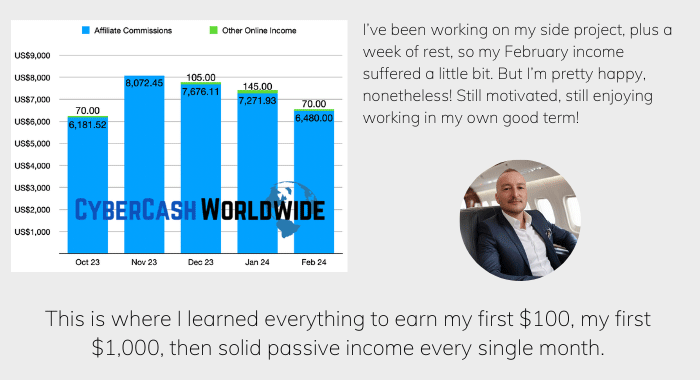
How I "Finally" Make Over $7,000 Monthly Income
"The most valuable thing I've ever done!"
Certificate Authorities and Trust
Websites use certificates to prove their identity and encrypt your connection to them. You trust a list of certificate authorities that are pre-installed in your browser. Some of these authorities might be compromised by governments or hackers. You should review the list of trusted certificates on your machine occasionally. You find that revoking trust in certain authorities can improve your security profile.
Man-in-the-middle attacks often involve a fake certificate that looks legitimate. Your browser will usually show a warning if it detects an invalid certificate. You should never ignore these warnings or click "proceed anyway" on a public network. Secure sites use HTTP Strict Transport Security to force an encrypted connection. You find that these protocols protect you from being downgraded to an unencrypted site.
Local certificates are sometimes installed by software to monitor your encrypted traffic. Antivirus programs and parental control software often use this method to scan your web data. You should check if any software on your computer is intercepting your HTTPS connections. This practice creates a security hole that others could potentially exploit. You find that true privacy requires a direct connection to the remote server.
- Check your browser settings for any untrusted or unusual root certificates.
- Never bypass certificate warnings when visiting a website over public Wi-Fi.
- Install an extension that forces HTTPS on every website you visit.
- Disable any software that performs "HTTPS scanning" or "web protection".
- Use a browser that supports the latest TLS encryption standards for all sites.
Operating System Hardening Procedures
The operating system you use has a major impact on your overall privacy. Most mainstream systems collect telemetry data about your usage and hardware. You should go through the privacy settings and disable all data collection features. Some versions of software are designed to be more private than the standard retail options. You find that switching to a privacy-focused system is the most thorough solution.
Firewalls block unauthorized connections from entering or leaving your computer. You should configure your firewall to deny all traffic except for the programs you trust. This prevents hidden malware from sending your data to a remote server. Outbound filtering is just as mandatory as inbound protection for your privacy. You find that monitoring your network traffic reveals which apps are talking behind your back.
Virtual machines allow you to run a separate operating system inside your current one. You should use a virtual machine for tasks that involve risky websites or files. Everything that happens inside the virtual box stays isolated from your main files. You can delete the entire machine and start fresh whenever you feel compromised. You find that this isolation is a powerful defense against tracking and malware.
- Turn off all telemetry and diagnostic data collection in your system settings.
- Use a firewall to block all outbound connections from unknown applications.
- Run a virtual machine for any browsing that involves high-risk activities.
- Encrypt your entire hard drive to protect your data from physical theft.
- Install security updates immediately to patch vulnerabilities in your system.

Email Privacy and Alias Creation
Your email address is often used as a primary identifier across the entire internet. You should avoid using your main email to sign up for newsletters or rewards programs. Companies share these addresses with data brokers to link your offline and online identities. Email aliases allow you to create a unique address for every service you use. You find that this makes it easy to see which company sold your data.
Encrypted email services protect the content of your messages from prying eyes. Standard email travels in a format that is easy for providers to read. You should use a service that provides end-to-end encryption for your private conversations. This ensures that only you and the recipient can read the text of the message. You find that these services often include other privacy features like self-destructing emails.
Trackers in emails are tiny images that notify the sender when you open a message. You should disable the automatic loading of images in your email client. This prevents companies from knowing your IP address and the time you read their mail. Many privacy-focused email providers block these trackers for you by default. You find that a clean inbox leads to a much more private digital life.
- Create a unique email alias for every new website where you register.
- Disable the "auto-load images" feature in your email application settings.
- Use a service that supports PGP encryption for your most sensitive mail.
- Avoid using your real name in the "Display Name" field of your email.
- Delete your old, unused email accounts to reduce your digital footprint.
Ad Blocking and Content Filtering
Advertisements are the primary way that companies track your movement across the web. You should use a high-quality ad blocker to remove these distractions and trackers. Most ads contain scripts that record your clicks and the time you spend on a page. Blocking these elements also prevents malicious ads from infecting your computer with malware. You find that the web looks much cleaner and loads faster without advertisements.
Content filters allow you to block entire categories of websites or tracking domains. You should use a network-level filter to protect every device in your home at once. These filters stop your smart TV and other appliances from sending data to advertisers. You can customize your blocklist to include the most aggressive tracking networks. You find that this reduces the amount of background noise on your internet connection.
Some websites try to detect when you are using an ad blocker and restrict access. You should use a blocker that can hide its presence from these detection scripts. Advanced filters allow you to remove specific elements from a page manually. This helps you get rid of annoying pop-ups and "recommended" content sections. You find that taking control of what you see improves your focus and privacy.
- Install a reputable ad blocker extension in every browser you use.
- Enable advanced filter lists like "EasyPrivacy" to block more trackers.
- Use a DNS-based ad blocker to protect devices that cannot install extensions.
- Block "Acceptable Ads" in your blocker settings to remove all advertising.
- Right-click and hide any element on a page that tracks or annoys you.
Future Proofing Your Privacy
Technology for tracking is always evolving to find new ways around your defenses. You must stay informed about the latest methods that companies use to gather data. New browser features often come with hidden privacy risks that you should investigate. Regularly updating your security strategy is the only way to stay ahead of the trackers. You find that privacy is a continuous state of mind rather than a one-time setup.
New laws and regulations sometimes provide more control over your personal data. You should exercise your right to request that companies delete your information. Many websites now have a "Do Not Sell My Info" link at the bottom of the page. You find that being proactive about your data rights helps reduce your overall risk. You should support organizations that fight for digital privacy and open standards.
Artificial intelligence and big data make it easier for companies to predict your behavior. You should vary your habits and use different tools to stay unpredictable. Privacy involves making yourself a moving target in a world of static data points. Your efforts today will protect your digital identity for many years to come. You find that the peace of mind is worth the extra effort required to stay safe.
- Subscribe to privacy news feeds to learn about new tracking technologies.
- Audit your privacy settings on every account at least once a year.
- Support open-source projects that prioritize user privacy and security.
- Request a copy of your data from major providers to see what they know.
- Tell your friends and family about the benefits of staying private online.
How To Browse Web Privately
True privacy in the digital age requires a shift in how you view every click and connection. You have seen that simple solutions like incognito mode are not enough to stop advanced tracking. Protecting your identity involves a combination of the right software and cautious behavior. You must remain vigilant as advertisers find new ways to bypass your security layers.
Every step you take to hide your fingerprint or encrypt your traffic makes you a harder target. Consistency is the most mandatory part of any plan to stay anonymous on the web. You will find that the internet becomes a much different place when you are no longer the product.
Take the time to configure your devices and audit your habits on a regular basis. Your data belongs to you, and you have the right to keep it that way.
(Real Time) Affiliate Income Report Last Month

If you want a good VPN service you should always try as many as you want to see which one suits you the best. I used to use Nord VPN but I wasn’t happy. The support was terrible and the price wasn’t the best.
Hi Jack,
This is very interesting to me as I travel a lot and work from my laptop. So ,this would mean I could work remotely in my country of origin and not worry about some sites not being available in other countries and I suppose clients don’t need to know my every move either.
Is this correct? Will this service follow me? And what if I want to change laptops?
Can I install it accross my mobile devices also?
Hi Alison,
That’s right, your IP address will keep changing between 120,000 addresses in the world, so no one will know which country you were in. Or, you can set your favorite country, so you can pretend as if you were in the country of your origin while you are abroad. The system is web-based so all you need is an initial setup (there’s very clear & easy instruction) on your device. With your login ID detail, if you change the laptop you can set it up again.
I hope this explains, but if not don’t hesitate to ask again. Thanks for dropping by!
Jack
Your article was very interesting and informative. I always thought if the html:// was htmls:// that the s on the end made it secure. Have I been misinformed?
I can really see the benefits in keeping my online activities private. I also love the name.
Your site is very easy to read and the graphics are really great.
Thank you for sharing this.
Thanks Margaret, yes I understand https:// pages are encrypted, used to exchange confidential information so it’s more secure, but before you get to the page you probably go through http:// pages… I think it’s handy if you work on a lot of websites and communities globally.
Thanks for your complements!
My favourite feature about a VPN is the ability to watch tv shows that are only offered in certain countries. In many cases, I use a VPN to watch the American version of Netflix from Canada and it works great! Having peace of mind while surfing the web is also another huge plus. Accessing American services like Amazon Prime and American live TV is a huge plus for me.
Thanks for sharing your thoughts, yes I couldn’t agree more. I love to be able to watch TV shows from another country. It’s also handy for me to check product/service availability or Google listing in the eyes from the chosen country as well. If I Goggle something I get all the UK sites listed even in incognito mode, or a lot of global service sites automatically redirect me to UK version, whilst I want to check the availability in the States… (Unless there is another way???) So I find this device handy. Thanks again.
10 Ways For Startups To Succeed Making Acquisitions is great post, can you please teach me how to write article like this one.
What an interesting article! I never really gave much thought to services like this, but I can see how they might come in handy. The graphics you included in this post are very helpful, especially for a visual person like me. Without them I would probably still be confused on how a VPN works. You have a lot of great information here and I enjoyed reading your post. Well done!
Thanks Rachel, some people are so nervous about showing/showing any signs of their identity when browsing, and I had always thought they were over-reacting…until my Twitter account was hacked and started to receive spam and weird emails. Thanks again for your compliment!
This is a great review article. Thank you so much for your contribution. I find it so useful. I didn’t know we were so vulnerable position when we were surfing the net. I must be careful.